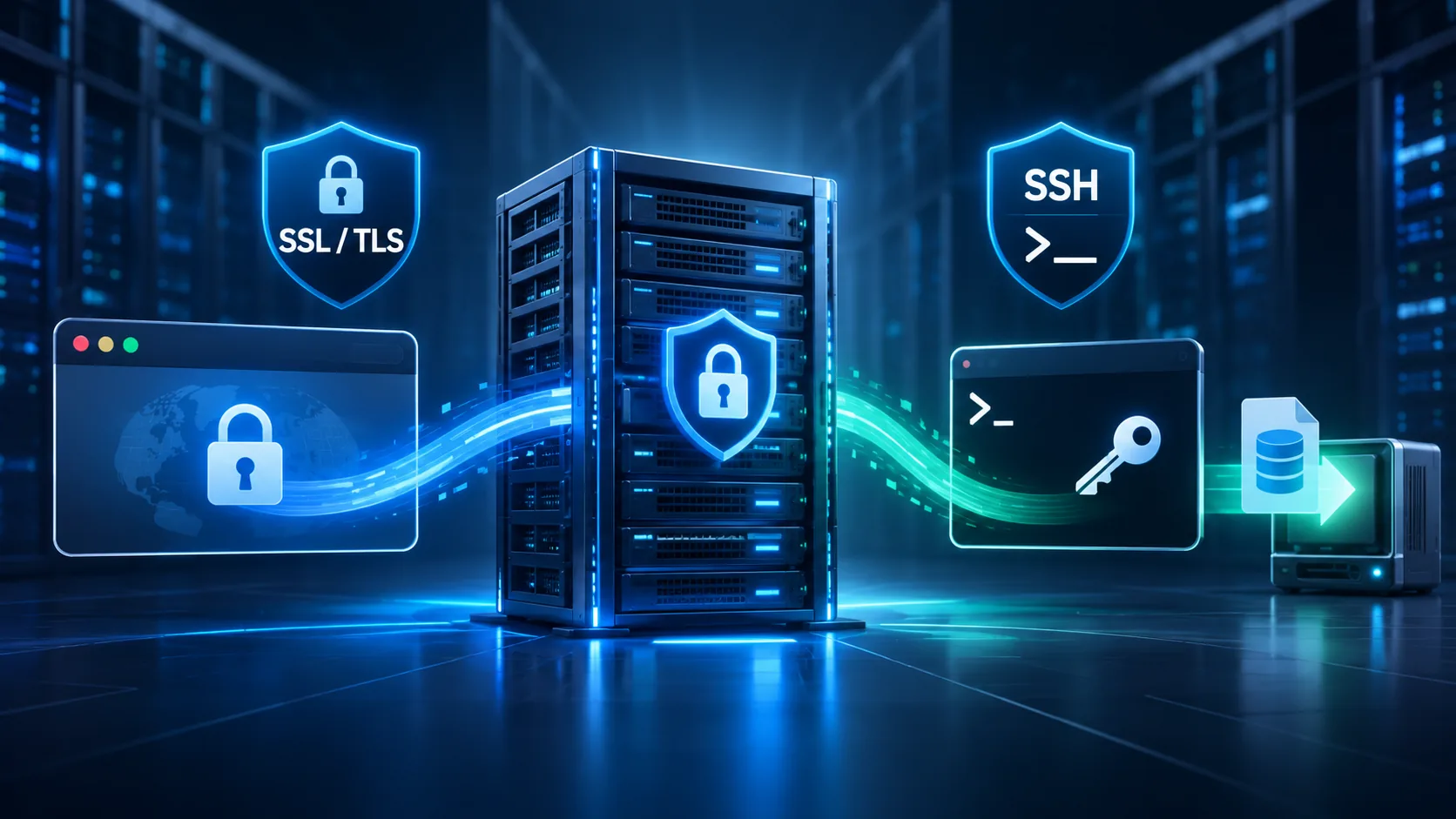
Short answer: SSL (today really TLS) protects the traffic between your visitors and your website. It's the padlock in the browser bar. SSH is how a person or a tool logs into the server itself to run commands and move files. They share some maths, but they guard different doors. So when a backup service asks you for SSH, it is not asking for your SSL certificate, and it never needs it.
This mix-up is common for a simple reason. Your host sold you "SSL" when you set the site up, so it's the security word you know. Then a backup tool, a developer or a migration guide asks for "SSH access", and it sounds like the same thing with a typo. It isn't. Below we'll walk through what each one does, how they compare on ports and keys, how to switch SSH on in cPanel or on a VPS, and why an outside backup service like BackupYourSite is built on one and has no use for the other.
Methodology: the protocol facts here come from the published standards (the RFCs) and the vendors' own documentation, linked where they're used. Product details about BackupYourSite come from our own How It Works and FAQ pages. There are no usage figures in this post because we don't publish any.
SSL/TLS: the padlock your visitors see
SSL stands for Secure Sockets Layer. It was Netscape's protocol from the mid-1990s, and every version of it is now retired. SSL 3.0, the last one, was formally deprecated in 2015 in RFC 7568. What your site actually runs today is TLS, Transport Layer Security. The name "SSL" stuck because hosts, certificate sellers and control panels kept using it. When you buy an "SSL certificate", you're buying a TLS certificate.
TLS does one job: it wraps the connection between a browser and your web server so that nobody in the middle can read it or change it. That covers the login form on /wp-admin/, the checkout page, the contact form, and every image and script on the page. The current version is TLS 1.3, published in August 2018 as RFC 8446. TLS 1.0 and 1.1 were deprecated in 2021 by RFC 8996, so a modern host should only offer 1.2 and 1.3.
The certificate is the part you deal with. It's a file that says "this public key belongs to example.com", signed by a certificate authority that browsers already trust. Its lifetime is short on purpose. Per the Let's Encrypt FAQ, their certificates are valid for 90 days, and most hosts renew them automatically. Paid certificates from commercial authorities currently run for up to 398 days.
Here's the important bit for this article. TLS lives on the web server's public face, usually port 443. It protects the people who visit the site. It does nothing for the person who manages the server, and it gives no one a way in. Holding a copy of a site's certificate doesn't let you read a single file on that server.
SSH: the door you (and your tools) use to the server
SSH, Secure Shell, appeared in 1995 as a replacement for telnet and rlogin, which sent passwords across the network in plain text. The version everyone uses now is SSH-2. Its transport layer is defined in RFC 4253, published in 2006 alongside three companion RFCs (4251, 4252 and 4254).
Where TLS protects a conversation between a browser and a website, SSH protects a login. Once connected, you get a shell on the server. You can list folders, edit wp-config.php, run wp (WP-CLI) commands, export the database with mysqldump, or copy files back and forth with SFTP or scp, which both run inside the SSH connection.
SSH listens on port 22 by default. Some hosts move it to a different port to cut down on automated login attempts, and that's fine: the protocol is the same, you just type the port in. According to the SSH Academy overview of the protocol, SSH also checks the server's own identity with a host key. That's why the first time you connect you see a fingerprint and a "continue connecting?" prompt. Say yes only if the fingerprint matches what your host publishes.
SSH is about access. Anyone with working SSH credentials for an account can read every file that account can read. That's exactly why a backup tool wants it, and exactly why you should be careful about how you hand it over. More on that below.
Side by side: ports, keys, what each protects
The two protocols borrow from the same toolbox. Both use public-key cryptography to agree on a session key, then encrypt the rest of the traffic with a fast symmetric cipher like AES or ChaCha20. That shared toolbox is where the confusion starts. The differences are in who they serve and how trust is set up.
| SSL / TLS | SSH | |
|---|---|---|
| What it protects | Visitors' traffic to your site | Logins and file transfers to your server |
| Default port | 443 (HTTPS) | 22 |
| Who uses it | Every visitor's browser | You, your developer, tools you authorise |
| How the server proves who it is | A certificate signed by a trusted authority | A host key you accept on first connect |
| How the client proves who it is | Usually doesn't (the visitor is anonymous) | Password or SSH key, every time |
| The thing you manage | A certificate that renews every 90 to 398 days | A user account and its authorised keys |
| Current standard | TLS 1.3 (RFC 8446, 2018) | SSH-2 (RFC 4253, 2006) |
| Gives shell or file access? | No | Yes |
The row that matters most is the last one. TLS answers the question "can this visitor trust they're talking to the real site?" SSH answers "is this person allowed to log in and touch the files?" A site needs both, for different people.
The "SSH vs SSL vs TLS" searches are really one question with an extra layer. SSL and TLS are the same protocol family at different ages. SSH is a separate protocol. So the real comparison is SSH vs TLS, and the answer is that they don't compete. Your host runs TLS for the website and SSH for the administrators, side by side, on the same machine.
SFTP vs FTPS works the same way. SFTP is file transfer inside SSH. FTPS is old FTP wrapped in TLS. If you're choosing between those for moving backup files around, we covered that in SFTP vs FTPS: which one should carry your site's backups.
Turning on SSH access in cPanel and on a VPS
Whether you already have SSH depends on the kind of hosting you pay for. On a VPS or a dedicated server it's on by default, because that's how you manage the box. On shared hosting it varies. Some hosts switch it on for every account, some keep it behind a toggle, and some only enable it if you open a support ticket. A few budget plans don't offer it at all.
On cPanel shared hosting
Log in to cPanel and look in the Security section for SSH Access. If you can't find it, search the cPanel toolbar for "SSH". No result usually means your host has hidden it, and a short ticket asking them to "enable shell access for my account" is the next step.
Inside SSH Access, click Manage SSH Keys. You'll see two choices: generate a new key on the server, or import one. If a backup service or developer has given you a public key, use Import Key, paste it in, give it a name you'll recognise later, and save. Then go back to the key list and click Manage next to it, followed by Authorize. That last click is the one people miss. An imported key that isn't authorised won't let anyone in.
Your SSH details are then:
- Host: your domain or the server's hostname (shown in cPanel's sidebar)
- Username: your cPanel username
- Port: 22, unless your host's docs name a different one
On a VPS
You probably already log in with SSH. The question is which user an outside tool should use. Don't hand over root. Create a normal user that owns the site files, or reuse the one your control panel already created for the site, and add the tool's public key to that user's ~/.ssh/authorized_keys file. Folder permissions matter here: ~/.ssh should be 700 and authorized_keys should be 600. With looser permissions, OpenSSH will quietly refuse the key, and you'll get a password prompt you didn't expect.
Managed hosts are their own case. Some give SSH on every plan, some only on higher tiers, and some lock you into their own tools. If you're on Cloudways, for example, the details are in our post on backing up Cloudways without root access.
Keys vs passwords: generating an ed25519 key
SSH accepts two kinds of proof that you're allowed in: a password, or a key pair. Passwords work, but they can be guessed, phished, reused across sites and typed into the wrong place. A key pair can't be guessed in any practical sense, and the secret half never leaves the machine that made it.
A key pair is two files. The private key stays with whoever is logging in. The public key goes on the server, in that authorized_keys file. When you connect, the server sends a challenge that only the private key can sign. Nothing secret crosses the network, and the public key is safe to email, paste into a dashboard or post on a forum.
ed25519 is the modern key type to pick. It's an elliptic-curve signature scheme, and its use in SSH was standardised in 2020 as RFC 8709. The public key is just 32 bytes, so the line you paste is short and easy to copy without breaking. Older RSA keys still work, but they need 3072 or 4096 bits to be considered strong, and they're slower to create and check.
To make one yourself on macOS, Linux or Windows 10 and later, open a terminal and run:
ssh-keygen -t ed25519 -C "laptop-2026"Accept the default location and set a passphrase. You'll get two files in your .ssh folder: id_ed25519 (private, keep it) and id_ed25519.pub (public, the one you share). The -C value is just a label so you can tell keys apart in cPanel later.
A backup service flips who holds which half. With BackupYourSite, you generate an ed25519 keypair inside the dashboard, and only the public half is shown to you. You paste that into your hosting panel using the cPanel steps above. The private half stays on our side, encrypted at rest, and it's never displayed back. We built it this way on purpose: per our How It Works page, we never have, or want, a way to install keys on a server ourselves. You decide where the key goes, and you can delete it from authorized_keys whenever you like to cut access off.
Why a backup service asks for SSH, not SSL
This is the question in the title. A backup has to read every file in your site folder and export the whole database, then carry both somewhere safe. To do that from outside your server, a tool has to log in. TLS can't log anyone in. It only protects visits to web pages. So the only way an external service can reach your files without a plugin running inside WordPress is SSH.
Here's what happens on a BackupYourSite run, taken straight from our How It Works page. At your scheduled time, our servers open an SSH connection to yours. For WordPress, the database details are read from wp-config.php right then, so they're always current. Your files are packed and the database dumped, and both are streamed back over that same SSH channel. Nothing is written to your server's disk, which is why a site with no spare disk quota can still be backed up. Each archive then has to pass integrity checks, and the database dump has to end with MySQL's own completion marker, before the run can count as a success. Restores go back the same way, over SSH.
Your SSL certificate plays no part in any of that. We don't ask for it, and you shouldn't send it to any backup tool that does. A request for your certificate's private key is a warning sign: that file is what lets your server prove it's really your site to visitors.
When we designed the service, there was a second reason to work over SSH. A backup plugin runs inside WordPress. If WordPress breaks, through a white screen, a hack or a bad update, the plugin breaks with it, at the moment you need it most. A connection from outside doesn't care whether WordPress is healthy. As long as the server accepts the SSH login, the backup runs and the restore works. That's the point of the agentless SSH approach covered in our FAQ.
No SSH on your plan? You still have options. Our own free WordPress plugin runs inside WordPress for hosts with no shell access, and our freelancer's guide to backups without plugins covers what you can do with cPanel's built-in tools.
Is handing over SSH access safe?
It's a real question, and the honest answer is: it depends on how you hand it over. A few rules keep the risk small.
- Prefer a key to a password. A key can be removed in one click without changing anything else, and it can't be reused to log into your email or your hosting account.
- Use the site's own account, never root. The tool should only see what the site owner can see.
- One key per service. If you stop using a tool, delete its key from
authorized_keysand access ends. - Check how credentials are stored. According to our FAQ, BackupYourSite encrypts SSH keys, passwords and database credentials at rest and never shows them back. Ask any provider the same question before you hand over anything.
If you want to see the whole flow before connecting a site, the How It Works page lays out all six steps, from adding the SSH host to restoring a backup.
Frequently Asked Questions
Is SSH the same as SSL?
No. SSL (now TLS) encrypts the traffic between visitors' browsers and your website, usually on port 443. SSH encrypts a login to the server itself, usually on port 22, and gives shell and file access. They use similar cryptography, but they protect different things for different people.
Do I need SSH if my site has SSL?
For visitors, no. SSL/TLS is what keeps their traffic private. For you, SSH is how you or a tool you trust manage files, run commands and take outside backups. A site with SSL but no SSH is perfectly secure for visitors. It just limits what can reach the server from outside.
Does my shared hosting have SSH?
Check cPanel's Security section for "SSH Access". If it's there, you have it, though some hosts still need you to ask them to switch shell access on. If it isn't there at all, open a support ticket. Some budget plans don't include SSH, and in that case a plugin-based backup is the fallback.
Is it safe to give a backup service SSH access?
It can be, if you use a key instead of a password, connect it to the site's own account rather than root, and give each service its own key so you can delete it later. Also ask how the provider stores credentials. BackupYourSite encrypts them at rest and never displays them back.
What is an ed25519 SSH key?
It's a modern type of SSH key pair based on elliptic-curve cryptography, standardised for SSH in RFC 8709 (2020). The public key is short (32 bytes), quick to check and strong by today's standards. You share the public half with a server and keep the private half secret. Generate one with ssh-keygen -t ed25519.