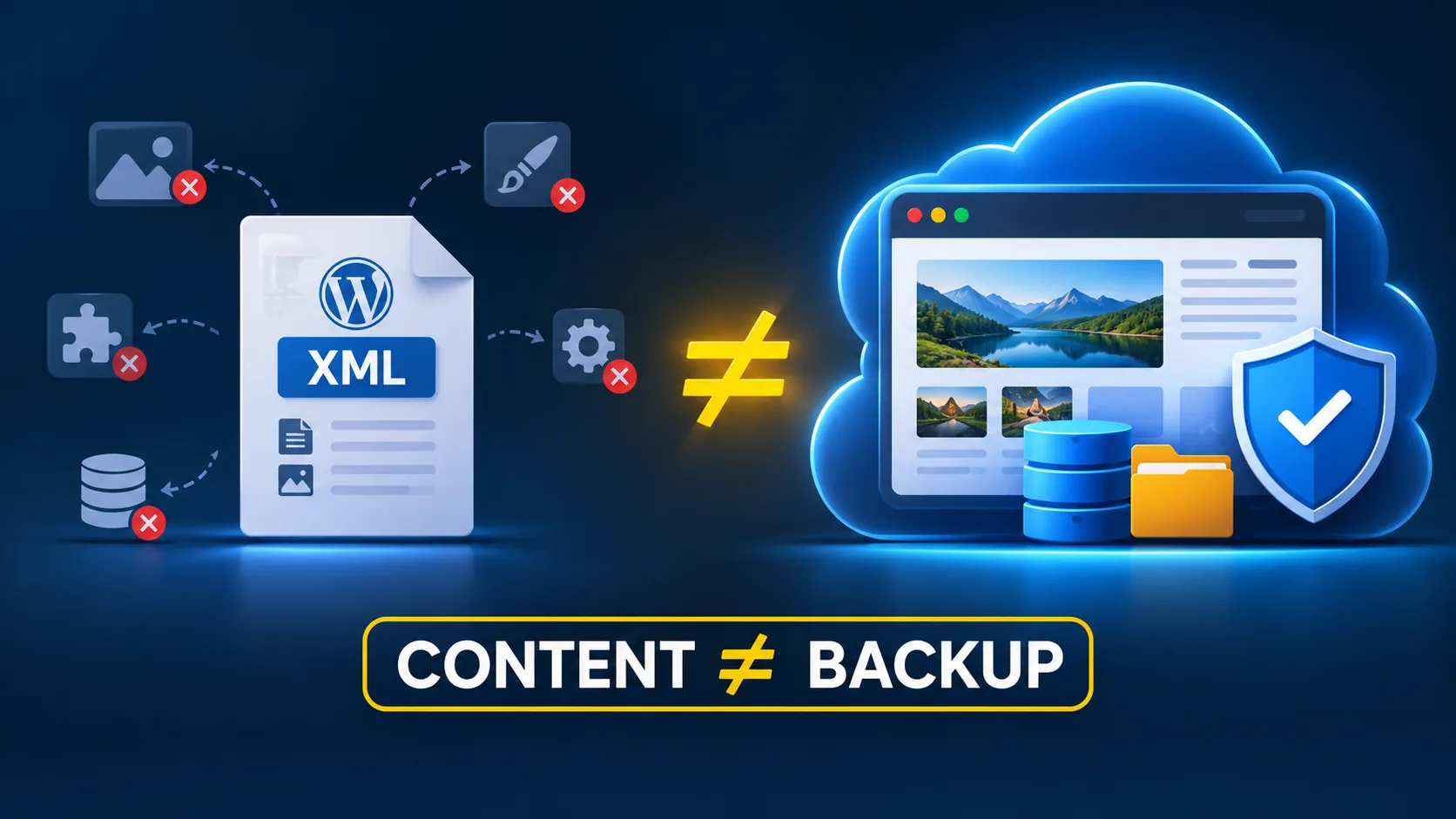
The short answer: a WordPress export is a content copy, not a backup
Go to Tools → Export, click Download Export File, and WordPress hands you one XML file. People save it, see a file with a recent date, and tick "backup" off the list. That's the mistake this post is about.
The file is real and useful. It just isn't what most people think it is. It holds your words: posts, pages, comments, categories, tags and some metadata. It doesn't hold your images, your theme, your plugins, your settings or your store's order history. If your site vanished tonight and all you had was that XML file, you'd be rebuilding a site from a pile of text.
At BackupYourSite we spend our days on the other side of this problem, so the line we draw is simple. An export moves content between WordPress sites. A backup brings a dead site back. Both are fine things to have. They aren't the same thing, and the gap between them is exactly where sites get lost.
The rest of this guide shows what's inside the file, what's missing, how an export compares with a full backup, when the export is the right tool, and what you can actually rebuild if an export is all you've got.
What Tools > Export actually produces
The Export screen creates a WXR file. WXR stands for WordPress eXtended RSS, an XML format built on top of RSS 2.0. According to the WordPress documentation for the Export screen, the file contains your posts, pages, comments, custom fields, categories and tags, and it's meant to be loaded into another WordPress site with the importer. The documentation describes it as a way to move content, not as a way to protect a site.
You get a handful of choices before you download. You can export all content, or narrow it to posts, pages, or media. Within posts you can filter by category, author, date range and status. That filtering is a clue to what the tool is for. Nobody filters a backup by author. You filter an export because you want a slice of content to carry somewhere else.
A few practical facts about the file itself:
- It's plain text, XML 1.0, usually saved with a name like
yoursite.WordPress.2026-11-19.xml. - It's generated in one PHP request. On a big site, that request can hit the server's time or memory limit, and you end up with a truncated file or a blank screen. Some hosts cut it off quietly.
- WordPress may split a very large export into several files, each one a valid WXR file on its own. You have to import every one of them.
- The file is readable by anyone who has it. It can include draft and private content and author details, so treat it like a private document, not something to drop in a public folder.
That last point is easy to miss. People email these files around casually. An XML file with your unpublished posts and your authors' email addresses is worth guarding.
What is in the XML file
Open a WXR file in a text editor and you'll see a long channel element with your site's title, URL and description at the top, followed by a repeating list of items. Each item is one piece of content. Here's what you'll find, grouped by what it means for you.
Posts, pages and custom post types
Every post and page is there, with its title, slug, publish date, status (published, draft, pending, private) and the full body text exactly as stored in the database. If you use the block editor, the block comment markers come along with the HTML. If you use a page builder that stores its layout in shortcodes, the shortcodes come along too, but a shortcode is just text. It only does something if the same plugin is active on the receiving site.
Custom post types are included when you choose "All content". Portfolio items, testimonials, events, products, whatever your theme or plugins registered. The catch is that the receiving site needs to register the same post type, otherwise the importer has nowhere sensible to put them.
Comments
Comments on exported posts are included, with the commenter's name, email address, URL, IP address, date and approval status. If you've got years of conversation under your posts, that's preserved. Spam that's sitting in your spam folder usually isn't worth the bytes, but it can come along as well.
Custom fields
Post meta, the key-value pairs stored against each post, is exported. This is where plugins stash a lot of useful data: SEO titles and descriptions, featured image IDs, page builder settings, product prices. It's included. But a value is only as useful as the thing that reads it. An SEO plugin's meta description will sit quietly in the file, and it'll show up again only once the same plugin is installed on the new site.
Categories, tags and custom taxonomies
Terms are exported with their slugs, descriptions and parent relationships, and each post lists which terms it belongs to. Custom taxonomies come along when the content that uses them is exported.
Authors
The file lists each author's login, display name and email address. It doesn't include their passwords. When you import, WordPress asks you to map each author in the file to an existing user or to create a new one. That's one of the few steps in an import that needs a real decision from you.
Navigation menus
Menu items are stored in WordPress as a content type, so they're exported when you choose all content. The menu structure comes along. The theme's menu locations don't, because locations belong to the theme, and the theme isn't in the file.
References to media
Here's the subtle one. Your media library items are in the file as attachment entries. Each entry carries the title, caption, alt text, description and, most importantly, the URL of the original file. The file itself isn't inside the XML. The XML just points at it. We'll come back to this, because it's the single biggest source of surprise.
What is not: media, settings, plugins, custom tables
Everything above is content. Everything below is the machinery that makes your site look and behave the way it does. None of it is in a standard export.
The media files themselves
The images, PDFs and videos in your uploads folder aren't in the export. This surprises people more than anything else on the list. The XML contains a pointer to each file, and the importer can try to download each one from the old site's URL while it imports. That only works while the old site is still online and the files are still there. If the old site is gone, the importer has nothing to download, and your posts come in with broken images.
Think about what that means as a backup strategy. The one time you need a backup is when the old site is gone. That's also the one time the export can't fetch your images.
Themes and plugins
No theme files, no plugin files, no child theme customizations, no custom code in a must-use plugin folder. The export doesn't even record a list of which plugins you had active. If you built a custom theme or paid for a premium plugin, the export contains nothing of it. You'd need the original zip files or a copy of the folder.
Site settings and options
Settings live in the options table, and the export doesn't read it. That leaves out your site title configuration beyond the channel header, your permalink structure, your reading and discussion settings, your active theme, your widgets, your Customizer choices and nearly every plugin's configuration. A plugin you spent an afternoon configuring comes back at factory defaults.
Permalinks deserve a special mention. If your old site used /%postname%/ and the new one is on the default ?p=123 style, every inbound link and every search result breaks until you set it back by hand. The export doesn't remember.
Users beyond authors, and passwords
Only authors of exported content appear. Subscribers, customers and members who never wrote a post aren't there. Even for authors, password hashes aren't exported. Nobody can log in to the new site with the old credentials without a reset.
WooCommerce orders, customers and settings
Products are a custom post type, so they can be exported, though variations, stock details and product images follow the same rules as everything else. Orders are where people get caught. Newer versions of WooCommerce can store orders in their own database tables instead of the normal posts table. Per the WordPress developer documentation on backups, a proper backup means the entire database plus your files, because content lives in more than one place. A content export reads the posts table through WordPress's own export code. Anything stored elsewhere isn't reliably in it. If you run a store, don't assume your order history, customer records, coupons, tax rules or payment settings are in the XML. Check before you rely on it, and use WooCommerce's own export tools or a full backup for orders.
Custom database tables
Many plugins create their own tables: form entries, booking records, membership levels, analytics, redirects, LMS progress, e-commerce extras. A WXR export can't see them. If your contact form plugin kept 2 years of enquiries in its own table, those enquiries aren't in your export.
Everything outside WordPress's database
Your wp-config.php, your .htaccess rules, your server's cron jobs, your SSL certificate, your DNS records and your email setup are all outside the file. They're part of "the site" in any practical sense, and none of them is a WordPress post.
Export vs full backup: side-by-side table
Here's the comparison in one place. A tick means it's reliably included in a standard Tools → Export file. For the full backup column, we describe a backup that captures the files and the whole database, which is how a backup should be defined.
| What you'd lose | Tools → Export (WXR) | Full backup (files + database) |
|---|---|---|
| Posts and pages (text) | Yes | Yes |
| Comments | Yes | Yes |
| Categories, tags, custom taxonomies | Yes | Yes |
| Custom fields / post meta | Yes | Yes |
| Image, PDF and video files | No, only links to them | Yes |
| Theme and child theme files | No | Yes |
| Plugin files and premium plugin licences stored on disk | No | Yes |
| Site settings, widgets, Customizer | No | Yes |
| Plugin settings | No | Yes |
| Permalink structure | No | Yes |
| Subscribers, customers, password hashes | No | Yes |
| WooCommerce orders and customers | Not reliably | Yes |
| Plugin-created custom tables | No | Yes |
wp-config.php and .htaccess | No | Yes |
| Restore the site as it looked | No, you rebuild | Yes |
| Runs on a schedule by itself | No, it's a manual download | Yes, when set up |
| Stored somewhere away from the server | Only if you move it yourself | Yes, when set up |
Count the rows. An export wins on 4 of them. A full backup wins on all the rest. That ratio is the whole argument.
One more difference isn't in the table because it isn't about content. An export is something you remember to do. A backup is something that happens whether you remember or not. If your plan for protecting the site is "I'll click Export before I change anything", you'll be fine until the one time you forget. That's the time the plugin update breaks the checkout, or the host's disk fails, or somebody deletes the wrong folder.
When an export is the right tool
None of this makes the export bad. It's a good tool used for the wrong job. These are the jobs it's genuinely right for.
Moving content to a new WordPress site
You're launching a fresh site on a new theme and want your old posts and pages in it. Export from the old, import into the new with the official importer. Because the new site is clean, you aren't dragging old plugin clutter along. For a redesign where the old design is being thrown away on purpose, this is often better than a full migration.
Splitting one site into two
Filter by category or by post type, export just that slice, and import it into a new site. A company blog and a documentation section that have outgrown each other is a common case.
Merging a small site into a bigger one
Export the small site's pages and posts, import them into the main site. You decide on author mapping, and you handle redirects from the old domain separately.
Handing editors a copy of the words
Sometimes a client, translator or editor needs the text without access to the live site. A WXR file, or a post filtered by date range, does that job fine.
A cheap extra copy of your words
If your content is the thing you'd be most upset to lose, a fresh export now and then is a decent extra layer. It's cheap, it's fast, and the text is the one piece of a site that's genuinely hard to recreate. Just don't call it your backup. It's a second line of defence behind the real one.
Where it goes wrong
The pattern we'd flag: someone exports before a risky change, such as a PHP upgrade, a theme switch or a big plugin update, expecting it to be their way back. If the change breaks the site, the export gets you the text and nothing else. You'd still have to find a theme, reinstall and configure every plugin, re-upload every image and redo every setting. A full backup taken before the same change gets you back in one restore. Our note on why a database backup is only half a website covers the same trap from the database side.
If you only have an export: what you can rebuild
Say it has happened. The site is gone, and the only thing you have is a WXR file. Here's an honest account of what comes back and what doesn't, so you can plan the work instead of hoping.
Step 1: install a clean WordPress
Set up a new WordPress install on your host. This gives you a database, core files and an empty site. Pick your permalink structure straight away. Match the old one if you remember it, because it decides whether your old URLs work.
Step 2: install the matching theme and plugins first
Before you import anything, install the theme and every plugin that registered custom post types or taxonomies. If you don't, the importer skips content it doesn't recognize or files it in the wrong place. You'll need to remember what you had. If you can't, the content still tells you: look inside the XML for post type names and shortcodes, and search for the plugin that owns them.
Step 3: run the importer
Install the official WordPress Importer plugin from wordpress.org, activate it, and upload your file. Map authors, and tick "Download and import file attachments" only if the old site's media is still reachable. If the old site is gone, that box will fetch nothing, and your posts come in with image links that point nowhere.
Step 4: rebuild what the file never held
Then comes the long part of the job:
- Re-upload every image you can find, from old email attachments, a local folder, or the Wayback Machine, and reconnect them to posts.
- Reconfigure each plugin from scratch.
- Rebuild widgets, menus' theme locations, the homepage setup and the Customizer choices.
- Recreate user accounts and have people reset their passwords.
- For a store, recreate or re-import products, then work out how to recover orders from other records, such as payment-gateway dashboards and email receipts.
- Set up redirects for any URL that changed, then resubmit the sitemap in Google Search Console.
What this costs you
For a small brochure site with a dozen pages, it's an annoying weekend. For a site with thousands of images, a custom theme and a working store, it can run to weeks, and some of it can't be recovered at all. A form plugin's stored entries, a custom theme with no copy anywhere else, a media library nobody kept: when those are gone, they're gone.
That gap, between a weekend and weeks, is the real price of calling an export a backup.
How to make an export, in case you need one
Steps are short, and the official Export screen guide covers them in full.
- Log in to wp-admin and go to Tools → Export.
- Choose "All content" to include every post type, or pick Posts, Pages or Media for a narrower file.
- If you picked a narrower type, set filters such as category, author, date range or status.
- Click Download Export File and save it somewhere that isn't on the server it came from.
- Open the file in a text editor and check that it ends with the closing channel and rss tags. A file that stops short was cut off, and you should try again or export in smaller slices.
If the export times out, try a narrower date range, a single post type at a time, or ask the host to raise the PHP time and memory limits for a few minutes. If you can run commands on the server, WP-CLI offers wp export, which avoids the browser request entirely. That's a different tool from wp db export, which writes a SQL dump of the database. We cover that one separately in wp db export isn't a full backup, so we'll leave it there.
What a real backup does that an export can't
A proper backup has 3 properties, and the export has none of them on its own.
First, it covers both halves of the site. The WordPress backup guidance on developer.wordpress.org says the same thing in plain terms: a site is its database plus its files, and you need both. A WXR file is a partial slice of the database and nothing from the file system.
Second, it runs without you. Manual steps get skipped on busy weeks. Our BackupYourSite features page describes how we handle it: daily backups of files and database, verified before they're stored, with a restore you can start in one click, either for files, the database or both. We built BackupYourSite around an SSH service so there's nothing to install on the server for the backup to work, and the daily summary email tells you whether the last run worked.
Third, it lives somewhere else. A copy that sits on the same server as the site goes down with the site. Whether it's a backup service, cloud storage or another machine, the copy has to survive the loss of the original. For a plain-language definition of the whole idea, see what a WordPress backup is.
Use both. Keep exports for moving and splitting content. Keep a real backup for the day something breaks.
A quick checklist before you trust any copy of your site
- Can it restore your images? If the answer is "it links to them", it can't.
- Can it bring back your theme and plugins, or only your text?
- Does it include your settings and plugin configuration?
- If you run a store, does it include orders and customers, and have you checked that rather than assumed it?
- Is a copy stored away from your server?
- Does it run on a schedule you don't have to remember?
- Have you ever restored from it, even on a test site, to prove it works?
If your honest answer to most of these is no, what you've got is a content export. That's fine for what it is. It just isn't protection.
Frequently Asked Questions
Does WordPress export include images?
No. The export file includes an entry for each media item with its title, caption, alt text and the URL of the original file, but not the image itself. When you import, WordPress can try to download the files from the old site's URLs, and that only works if the old site is still live. Copy your uploads folder separately if you want the actual files.
Is WordPress export a backup?
No. It's a content transfer file. It holds posts, pages, comments, terms and post meta, but it leaves out media files, themes, plugins, settings, most users, custom database tables and, in many setups, WooCommerce orders. A backup has to bring the whole site back. An export doesn't.
What format is a WordPress export file?
It's an XML file in the WXR format, short for WordPress eXtended RSS. It's built on RSS 2.0 with extra elements for WordPress-specific data, and it's designed to be read by the WordPress Importer plugin. You can open it in any text editor.
Does export include WooCommerce orders?
Don't count on it. Products can be exported as a custom post type, but orders may be stored in separate database tables depending on your WooCommerce setup, and those aren't read by the standard export. Customers, coupons and store settings aren't covered either. Use WooCommerce's own export features for order data, and use a full backup for the store as a whole.
How do I export my whole WordPress site?
A single Tools → Export file can't hold the whole site. To copy everything, you need two parts: all your files (the wp-content folder with themes, plugins and uploads, plus wp-config.php) and a full dump of the database. A backup service or plugin can do both in one go and store the result off the server. If you only want the content, choose "All content" on the Export screen and accept that the rest has to be rebuilt.