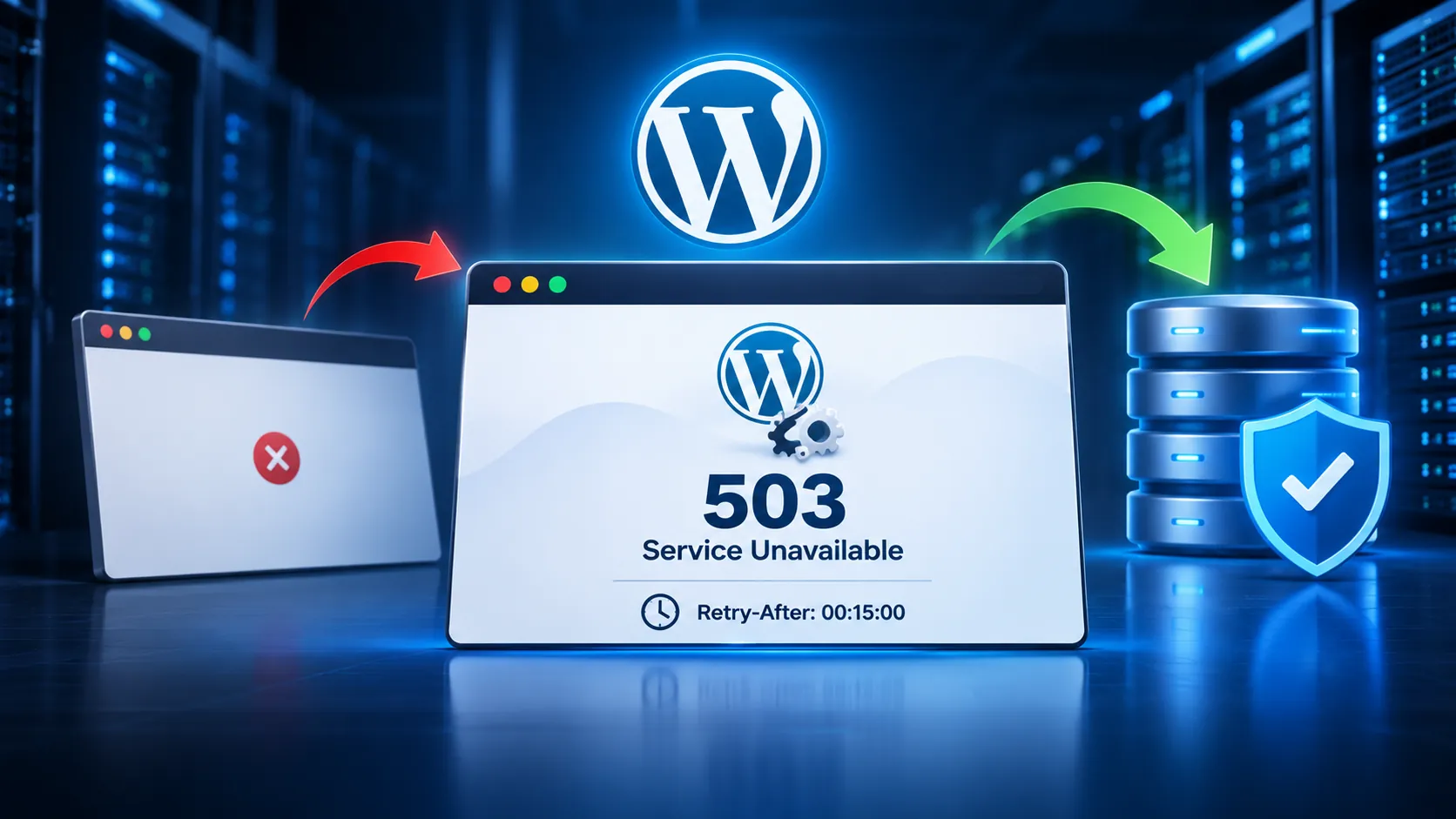
WordPress maintenance mode has one job that most guides skip. It has to tell search engines the site is down for now, not for good. That message is the HTTP status code, and the right one is 503 Service Unavailable, ideally with a Retry-After header. A pretty "back soon" screen that returns 200 OK tells Google your homepage is now a one-line notice. One that returns 404 tells it the page is gone. Below: what a correct maintenance page sends, three ways to switch it on, how to check it from the command line, and why the backup comes first, before you flip anything.
What maintenance mode should do: a 503 and a clear message
Think of maintenance mode as two audiences hitting the same URL. People need a short, honest message. Crawlers need a status code they can act on. Most plugins nail the first and leave the second to chance.
The status code is the part that does the work. According to MDN's reference for 503 Service Unavailable, the code means the server isn't ready to handle the request, and maintenance is one of the common causes. The same page says a 503 should be used for temporary conditions, should carry a Retry-After header with the expected recovery time where possible, and should come with a user-friendly page explaining the problem. That's the whole spec for a good maintenance page, in three lines.
The formal definition sits in RFC 9110, section 15.6.4, the HTTP semantics standard published in June 2022. Retry-After is defined in section 10.2.3 of the same document. It takes either a number of seconds (Retry-After: 3600 for one hour) or an HTTP date.
So a correct maintenance response looks like this:
HTTP/1.1 503 Service Unavailable
Retry-After: 3600
Cache-Control: no-store
Content-Type: text/html; charset=UTF-8
Followed by a small HTML page. Three things belong on it: what's happening, roughly when the site will be back, and a way to reach you if it's urgent. Skip the countdown timer if you aren't sure of the end time, because a clock that hits zero while the site is still down does more harm than no clock at all.
Here's what it should not do:
- Return 200 OK. This is the "coming soon" default on many setups. To a crawler it reads as a real page whose content is now "We'll be back shortly."
- Return 404 or 410. Those say the page doesn't exist. A 410 says it's gone on purpose.
- Redirect every URL to /maintenance/ with a 302. Now every page on the site points at one thin page, and the redirect target itself returns 200.
- Show a white screen. A fatal PHP error during an update often looks like "maintenance" to the person running it. It usually returns 500, and nobody chose it.
Three ways to switch it on (plugin, code, server)
There's no single correct method. The right one depends on how much of the stack you're about to touch. If the work is inside WordPress (a theme swap, a plugin update), a WordPress-level switch is fine. If you're about to restore the database or change PHP versions, WordPress itself may not boot, so the switch has to live outside it.
Option 1: a maintenance plugin
This is the method most ranking guides cover, and it's the quickest. Install, toggle, done, and the catch is that you're trusting the plugin's default status code. Some send a 503. Some send 200 unless you change a setting. Some let you pick. Don't take the settings screen's word for it. Check the real response with the curl test in the section further down.
Two limits to keep in mind. A plugin stores its on/off flag in the database, usually in the wp_options table. And a plugin only runs if WordPress loads. If your maintenance task is "restore the database" or "upgrade PHP from 7.4 to 8.2," the plugin may vanish halfway through the very job it's meant to cover.
Option 2: a few lines of code
WordPress already has a maintenance mode built in. It's what you see for a few seconds during a core or plugin update. Per the WordPress developer reference for wp_is_maintenance_mode(), core checks for a file named .maintenance in the site root. That file sets a variable, $upgrading, to the time it was created. If the file is less than 10 minutes old, WordPress is in maintenance mode. After 10 minutes, core ignores it.
The source of wp_maintenance() shows what happens next. Core sends Retry-After: 600 (600 seconds, so 10 minutes) and calls wp_die() with a 503. That's correct behaviour, out of the box. There's one trap, though. If you add a custom wp-content/maintenance.php drop-in to make that screen look nicer, core loads your file and stops. It never sends the 503 or the Retry-After header itself. Your drop-in has to send both, or your branded page goes out as a 200.
If you work from the command line, WP-CLI wraps the same mechanism in three commands: wp maintenance-mode activate, wp maintenance-mode deactivate and wp maintenance-mode status. They're handy on a server where you have SSH but would rather not hand-edit files in the web root, and they leave you with a clean way to confirm the state before and after the job.
The 10-minute expiry makes .maintenance a poor fit for anything longer. For an hour-long job, a small must-use plugin is cleaner. Save this as wp-content/mu-plugins/maintenance-503.php:
<?php
// Turn on: create wp-content/MAINTENANCE_ON. Turn off: delete it.
add_action( 'template_redirect', function () {
 if (! file_exists( WP_CONTENT_DIR. '/MAINTENANCE_ON' ) ) {
 return;
 }
 if ( current_user_can( 'manage_options' ) ) {
 return; // admins still see the real site
 }
 header( 'Retry-After: 3600' );
 wp_die(
 '<h1>Back shortly</h1><p>We are updating the site and expect to be back within the hour.</p>',
 'Maintenance',
 array( 'response' => 503 )
 );
} );
A few notes on why it's built this way. The flag is a file, not a database row, so a database restore can't flip it on or off by accident. It hooks template_redirect, which fires for front-end pages but not for wp-admin or the login screen, so you can still sign in. Admins skip the notice, which lets you check your work while visitors see the 503. And wp_die() with a response of 503 sets the status code and sends no-cache headers for you.
It doesn't cover the REST API or admin-ajax.php. For most maintenance jobs that's fine. If you're changing something those endpoints write to (a WooCommerce checkout, say), block them at the server instead.
Option 3: at the web server
This is the method to use when WordPress itself is what you're working on. The web server answers with a 503 before PHP ever runs, so it keeps working even if the database is half-restored.
On Apache, in the site's .htaccess (put it above the WordPress block):
RewriteEngine On
RewriteCond %{REMOTE_ADDR}!^203\.0\.113\.10$
RewriteCond %{REQUEST_URI}!^/maintenance\.html$
RewriteRule ^ - [R=503,L]
ErrorDocument 503 /maintenance.html
Header always set Retry-After "3600"
Swap 203.0.113.10 for your own IP so you can still reach the site. The R=503 flag returns the status directly, and ErrorDocument serves your static page as the body. The always keyword matters. Without it, Apache leaves the header off error responses, which is exactly where you need it.
On Nginx, in the server block:
error_page 503 /maintenance.html;
location = /maintenance.html {
 internal;
 add_header Retry-After 3600 always;
}
if (-f $document_root/maintenance.on) {
 return 503;
}
Create maintenance.on in the web root to switch it on and delete it to switch it off. No reload needed, because Nginx checks for the file on each request.
The server method is a bit more work to set up, and on most shared hosting you only get the Apache route. It's worth it for the jobs that matter most: restores, migrations and PHP upgrades. For a move between hosts, there's a way to skip the downtime window entirely, covered in our guide to moving WordPress to a new host without a maintenance window.
Why the status code matters for search
Google settled this one a long time ago. Its 2011 Search Central post on planned site downtime says that instead of a 404, or an error page served with a 200, it's better to return a 503, because that tells crawlers the downtime is temporary. The same post says the optional Retry-After header is something Googlebot may use to decide when to recrawl.
The post is old, and Google now flags it as possibly outdated, pointing to newer guidance on temporarily disabling a site. The core advice about 503 hasn't changed, and it matches the HTTP standard. Google is careful in that post not to promise anything about crawling or ranking. It says the method "will generally not negatively affect" visibility. Fair enough. Nobody can promise more.
It also carries a warning that most maintenance guides leave out: don't treat 503 as permanent. Per the same post, a 503 that lasts too long can eventually look like a server that's gone for good, and Google may remove URLs from its index. So a 503 is a tool for hours, not for a redesign that drags on for weeks. If the site will be down that long, put the old site back up and build the new one on staging.
Here's how each choice reads to a crawler:
| What the maintenance page returns | What a crawler hears |
|---|---|
| 503 + Retry-After | Down for now. Come back after the stated time. |
| 503, no Retry-After | Down for now. Return time unknown. |
| 200 OK | This URL's content is now the maintenance notice. |
| 302 to /maintenance/ | Every URL temporarily points to one thin page. |
| 404 / 410 | This page doesn't exist (or was removed on purpose). |
| 500 | Something broke. Nobody planned this. |
Caching is the other half of this. MDN warns that a 503 shouldn't usually be cached, since clients may get stale error pages after the fix is live. Page caches and CDNs can bite you in both directions. They can store your maintenance page and keep serving it after you're done. Or they can keep serving cached pages from before you switched on, so the switch seems to do nothing. Send Cache-Control: no-store with the 503, and purge your page cache and CDN when you switch off.
Check it: one curl command
Don't trust the settings screen. Test the real response from a machine that isn't logged in:
curl -sI https://example.com/ | grep -iE "^HTTP|retry-after|cache-control"You want to see something like this:
HTTP/2 503
retry-after: 3600
cache-control: no-store
Run it against two or three URLs, not just the homepage: a post, a category page and a product page if you sell anything. A setup that returns 503 on / but 200 on deep URLs is a common half-fix. If the first line says HTTP/2 200, your maintenance page is lying to search engines. Run the whole check once on a staging copy, a throwaway test setup, before the real night. That way you're not learning your plugin's defaults with the live site already locked.
Take the backup before you flip the switch
This is the step the plugin guides skip, and it's the one that matters most if the work goes wrong. Maintenance mode is a sign that says "work in progress." It isn't a safety net. If the update breaks the site, the sign stays up and the broken site stays broken behind it. What gets you out is a clean copy of the site from just before you started.
Order matters here, for a reason that's easy to miss. If you take the backup after switching on, the maintenance state is now part of the backup:
- With a plugin, the "on" flag sits in
wp_options. Restore that database later, and the site comes back in maintenance mode. - With the file-based methods, the
.maintenancefile, theMAINTENANCE_ONflag or themaintenance.onfile sits in the file tree. A full-files restore brings it back.
The core .maintenance file expires on its own after 10 minutes, so a restored copy mostly fixes itself. The custom flags don't expire. That leaves a site that restores "cleanly" and then shows a 503 to every visitor until someone notices, which can take hours if the person who ran the restore has gone to bed.
So the sequence is: back up, confirm the backup is good, then switch on. "Confirm" means more than "the job said done." A database dump that was cut off halfway through looks like a finished file until you try to import it. When we built BackupYourSite, we made every run check the archive and require MySQL's own completion marker at the end of the database dump before the run counts as OK. Whatever tool you use, check that it does something similar, or check the dump yourself before you rely on it.
There's one honest exception. On a store or membership site, orders can land in the gap between the backup and the switch. Keep that gap short. If losing even one order matters, switch maintenance on first, take a database-only export, and write down that this export contains the "on" flag. Then turn that flag off straight after any restore from it.
Also back up somewhere the work can't reach. A backup stored on the same server you're about to change is a copy that fails at the same moment the site does. That's the idea behind BackupYourSite's backup features: the backup runs from outside your server and lands in separate, encrypted storage, so it's still there if the site isn't.
Maintenance mode during a restore
A restore is the maintenance job where the WordPress-level switches fail. You're replacing the database the plugin reads its flag from. You may be replacing the plugin's own files. For a few minutes the site is a mix of old files and new data, and any visitor who loads a page sees whatever that mix produces.
So for restores, use the server method from Option 3. It doesn't depend on PHP, the database or WordPress, so it holds through every stage. Then follow this order:
- Copy the broken state first: files and database. If the restore doesn't fix the problem, you need something to compare against.
- Switch on the server-level 503 and confirm it with
curl. - Run the restore. If only the database is bad (a plugin update that mangled a table, say), restore just the database. That's quicker, and it leaves your files alone.
- Check the restored site while the 503 is still up, using your whitelisted IP or an admin login.
- Look for maintenance flags the restore brought back (see the previous section) and remove them.
- Switch off, purge caches, and run the
curlcheck again.
A good restore tool does part of this for you. When we built the restore flow, we made it download and verify the archive before anything on your site is touched. A corrupt set is refused and the site is left unchanged, so a bad backup can't turn a short outage into a long one. You can restore files, database, or both, and each restore is logged with who ran it. The how-it-works page walks through the full backup-store-restore loop.
If you've never timed a restore, do it on a quiet afternoon before you need it. Our restore drill guide lays out a rehearsal that tells you how long your maintenance window really needs to be. That's also the number to put in Retry-After, rather than a guess.
Turning it off and checking nothing stuck
Switching off is where small mistakes hang around for days. Work through this list every time, even when the job went well.
Remove every flag, not just the one you set. Delete the flag file, remove the .htaccess or Nginx rule, or toggle the plugin off. Then look for leftovers. A failed core update can leave a .maintenance file in the root. It expires after 10 minutes, but if you see the "Briefly unavailable for scheduled maintenance" message long after that, something else is holding it up. That's a separate fix with its own causes.
Purge every cache layer. Clear the page-cache plugin, the host's server cache and the CDN. Then load the site in a private window and from your phone on mobile data, which skips your office network and any local cache.
Re-run the curl check. Every URL you tested before should now return 200. A 503 that's still there means a flag or a cached response survived.
Watch Search Console for a few days. If the work ran over and Googlebot hit a lot of 503s, you'll see it in the crawl stats report as server errors. A short, well-flagged window shouldn't leave a lasting mark. A long one, or one that sent 200s, is worth a closer look at the pages crawled during the outage.
Take a fresh backup. The site is now in a new state you've just tested. That's the copy you'll want if the next change goes wrong, and the backup from before the work doesn't include what you just did.
A short checklist
For anyone who scrolled straight here:
- Back up files and database. Confirm the backup is complete, not just "done."
- Pick the switch by job size: plugin for small in-WordPress work, mu-plugin for an hour or so, server rule for restores, migrations and PHP upgrades.
- Make sure the switch sends 503,
Retry-AfterandCache-Control: no-store. - Verify with
curl -sIon three different URLs. - Do the work. Check it while the 503 is still up.
- Switch off, remove leftover flags, purge caches, re-run curl.
- Take a fresh backup of the new state.
Want the backup step handled before you ever reach step 2? See what BackupYourSite does. Daily offsite backups, checked before they're stored, with one-click restores of files, database or both. If your host doesn't offer SSH, the free BackupYourSite WordPress plugin covers the same ground from inside the site.
Frequently Asked Questions
How do I put WordPress in maintenance mode?
There are three routes. A maintenance plugin is the fastest for small jobs. A short must-use plugin that sends a 503 when a flag file exists suits jobs of an hour or so. A web server rule in .htaccess or Nginx is the one to use for restores and PHP upgrades, because it works even when WordPress can't load. Whichever you pick, confirm it returns 503 with curl -sI.
Does maintenance mode hurt SEO?
Not if it's short and returns the right code. Google's guidance on planned downtime says a 503 tells crawlers the outage is temporary, which generally won't hurt visibility. The damage comes from maintenance pages that return 200 or 404, or from a 503 left up for so long that it looks permanent.
What status code should maintenance mode return?
503 Service Unavailable, ideally with a Retry-After header giving the expected downtime in seconds or as a date. It's defined in RFC 9110. WordPress core's own maintenance screen already does this, sending a 503 with Retry-After: 600.
How long can a site stay in maintenance mode?
Plan for hours, not weeks. There's no published cut-off, but Google warns that a 503 that lasts too long can be read as the server being gone for good, and URLs may be dropped from the index. For long projects, keep the old site live and build the new one on staging.
Should I back up before maintenance?
Yes, and before you switch maintenance mode on, not after. A backup taken during maintenance holds the "on" flag, so restoring it can bring the site back in maintenance mode. Back up, confirm the backup is complete, then flip the switch.