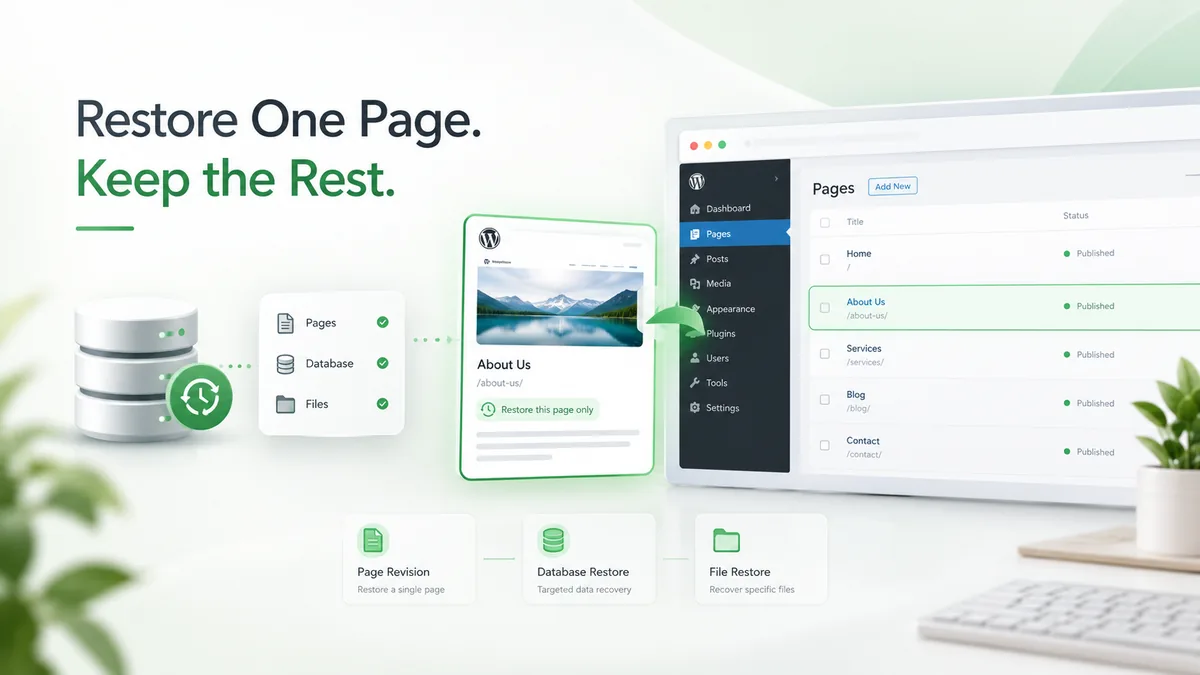
Someone edited the About page an hour ago and now it looks wrong. Or a page builder update quietly ate a section that was fine yesterday. The instinct is to reach for "restore the whole site from last night's backup." Don't. That trades one wrong paragraph for a day of lost orders, comments, and form submissions on every other page. The real request is almost never "put everything back." It's "put yesterday's version of this one page back, and leave today's data alone."
This guide walks through the options in the order you should try them: the Trash, built-in revisions, a targeted database restore, a WordPress export and import, and a file-level fix. It's also plain about what each method silently misses, like the hidden .htaccess file that restores often leave behind, so you don't find out the hard way.
First, work out what kind of "broken" you have
Most of the time wasted on a single-page restore comes from using the right tool on the wrong problem. Spend thirty seconds on this table before you touch a backup.
| What you see | Where to look first | Needs a backup? |
|---|---|---|
| Page is gone from Pages > All Pages | The Trash tab | No, if it was trashed in the last 30 days |
| Page exists but the text or an image changed | Revisions in the editor | No |
| Page exists but the layout is wrecked after a builder or theme update | The builder's own history, then postmeta from a backup | Often |
| Editor looks fine, front end is blank or throws an error | A theme or plugin file | A file from a backup, not a database restore |
| Page was deleted permanently, or the change is older than your revisions | A database backup from before the change | Yes |
| Many pages are broken, or you suspect a hack | Full recovery, a different job | Yes, see below |
Check the Trash before anything else
If the page has vanished from the list, go to Pages > All Pages and open the Trash tab. The tab only appears when something is in there. WordPress empties the Trash after 30 days by default, set by the EMPTY_TRASH_DAYS constant in wp-config.php. Setting that constant to zero turns the Trash off entirely, and then "Delete" means deleted, with no confirmation prompt. Some hosts and optimization plugins change this, so a missing Trash tab on a site you didn't build is worth a look at wp-config.php.

Hover over the title and click Restore. The page keeps its original ID and URL, but it comes back as a draft, so republish it and check the result in a private window. This is the only method in this guide that takes ten seconds.
What a "page" actually is in WordPress
Before restoring anything from a backup, know what you're restoring. A single page is not one database row. A published page is made of several parts working together. There's a wp_posts row holding the title, content, status, and dates. There's a set of wp_postmeta rows carrying SEO fields, page-builder layout data, and custom fields, often dozens of rows for one page built with a modern builder. If the page carries any category or tag, there are term relationships in wp_term_relationships. And there are attachment rows plus physical files in wp-content/uploads for any embedded images.
Restore the wp_posts row alone onto a page built in Elementor and you'll get the old title and a broken or empty layout, because the layout lived in postmeta you never touched. That's the most common way a "five-minute restore" turns into an afternoon of rebuilding.
Built-in revisions: what they cover, and where they run out
WordPress has kept post revisions since version 2.6, released in 2008. Open the page in the editor and click the revision count in the sidebar. Each entry is a full snapshot of the page content at that save, and the slider shows what changed between two versions. For a page edited a few times today, this alone solves the problem in under two minutes, with no database work.
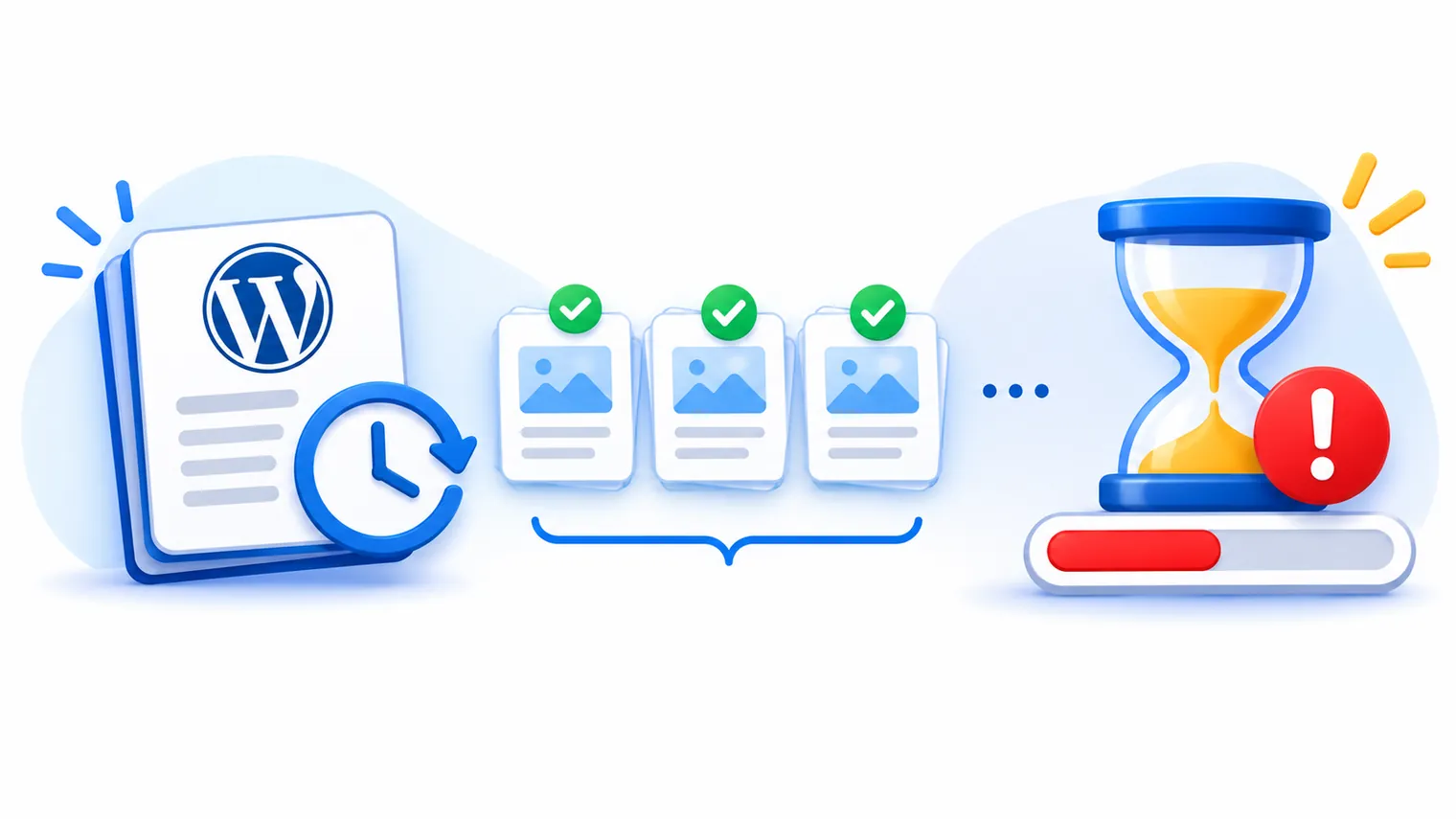
If you only need part of the old version, open the classic revisions screen, tick "compare any two revisions," and copy the paragraph or block you want straight out of the older version. You can paste it into the current page and leave the rest alone. That's often better than a full restore, because a full restore of a revision also throws away the good edits made since.
Know the limits. By default WordPress keeps every revision, but plenty of sites cap them with the WP_POST_REVISIONS constant in wp-config.php, and some hosts and cleanup plugins set it low or turn revisions off to keep the database small. If a limit is set, the oldest revisions are dropped as new ones arrive. Revisions also cover the content of the post itself, not the builder data stored in postmeta or the images in your uploads folder. We cover that gap in more detail in why WordPress revisions are not a backup.
Before assuming the slider shows everything, check wp_posts directly, filtering on post_type = 'revision' and post_parent = <page ID>, to see exactly what survives. Builders keep their own history too. Elementor, Divi, and Beaver Builder each have a revision or history panel that is separate from the WordPress one, and it is often the quickest fix for a layout that broke during a design session.
Before you restore from a backup: protect what's live
Everything below this point involves a backup, and the same three habits apply to all of it.
- Save the current version first. Export the page as it is now, even if it looks wrong. If the "broken" page turns out to be a display bug, that content is gone the moment an old version overwrites it.
- Never work on the live database first. Restore the backup somewhere disposable: a staging copy, a local install, or a spare database on the same server.
- Write down the page ID. It's in the admin URL as
post=1842. You'll need it for every query below.
When revisions don't reach far enough: pulling one page out of a SQL dump
If the version you need predates what revisions kept, the next source is a full database backup. Importing that whole dump would roll back every order, comment, and form entry created since, which is exactly what we're trying to avoid. The fix is to pull just the rows for one page out of the dump.
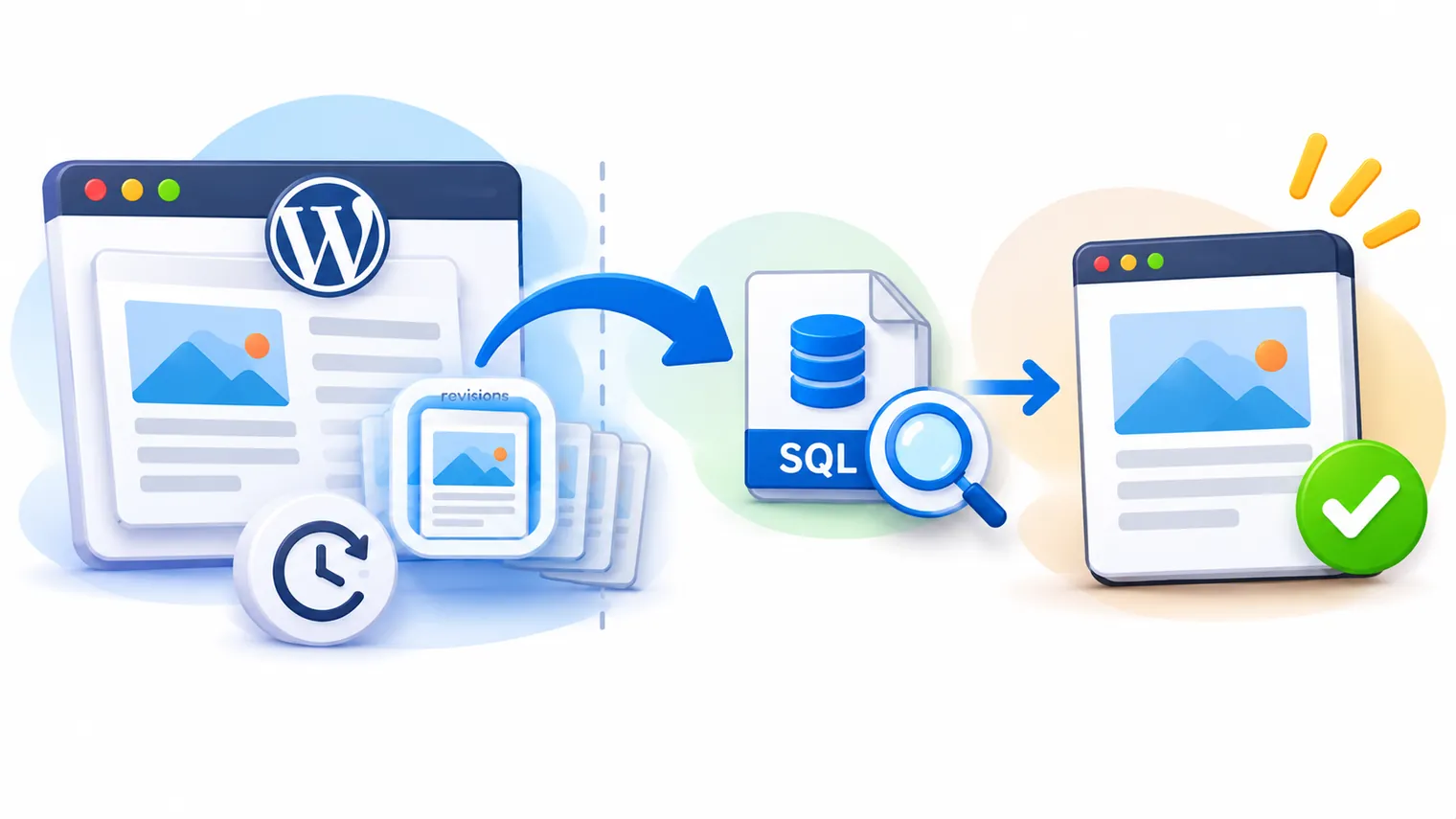
A mysqldump file is plain SQL text, with one or more INSERT statements per table. You could grep for the page ID inside the wp_posts block, but on a 400 MB file that is slow and easy to get wrong, and the multi-row inserts make it hard to cut out one tuple cleanly. The cleaner route is a disposable database. Spin up a throwaway MySQL container, or a spare database on the same server, import the full dump there, then run two targeted exports from that copy. Use your real table prefix if it isn't wp_:
mysqldump --no-create-info --skip-triggers --replace \
 --where="ID=1842" backup_db wp_posts > page_1842_posts.sql
mysqldump --no-create-info --skip-triggers --replace \
 --where="post_id=1842" backup_db wp_postmeta > page_1842_meta.sql
The --replace flag matters. Without it the dump writes plain INSERT statements, and importing them onto a live site fails with a duplicate-key error because that ID already exists. With it, the old row overwrites the current one.
Postmeta needs one extra step. A replace only overwrites rows that share the same meta_id, so meta keys that exist on the live page but not in the backup would stay behind and mix with the old data. After you've saved a copy of the live version, delete the page's current postmeta rows (DELETE FROM wp_postmeta WHERE post_id = 1842;) and then import the meta file. Import the posts file first, then the meta file. If the page had a category or tag you also need the matching rows from wp_term_relationships, filtered on object_id = 1842.
Because the ID is unchanged, the page keeps its URL, its internal links, and its place in menus. That's the main advantage over every method that creates a new page. WordPress's own database backup documentation only describes whole-database restores; the ID-targeted extraction above is the part it doesn't cover. If you've never opened a SQL dump before, what a database export does and doesn't contain is worth reading first.
The no-SQL option: export from a copy, import into live
If you'd rather not run SQL on a production database, there's a plainer route that uses WordPress's own tools. Restore the backup to a staging or local copy. In that copy, go to Tools > Export, choose Pages, and narrow the export with a date range or status so you don't pull the whole site. Download the file, then use Tools > Import on the live site.
Three things to know. The export screen can't pick a single page, so the file may carry its neighbours as well. The importer checks for an existing post with the same title and date and skips it, so to bring back an older version of a page that still exists you have to rename or trash the live one first. And the imported page is created fresh, so it gets a new ID and the slug may pick up a -2 suffix. Check the permalink and add a redirect if the URL changed. The export file does carry the page's postmeta, which is the point of using it over copying text by hand.
Page builders: why a naive row copy still breaks
Elementor stores its entire layout as a JSON string inside a single _elementor_data postmeta row, often tens of kilobytes. Gutenberg stores block markup directly inside post_content as HTML comments like <!-- wp:paragraph -->, so that part travels with the wp_posts row.
The trap with Elementor: copying _elementor_data from an old dump can reference template or global-widget IDs that have changed since. The restored page then shows a missing-widget placeholder instead of the original design. After any builder restore, go to Elementor > Tools > Regenerate CSS & Data, or the page can keep rendering stale styles over current content. Some postmeta values are PHP-serialized strings with their length written into the value, so editing them by hand or with a find-and-replace can corrupt them. Our write-up on the serialized data trap explains why. Restore rows whole; don't edit them.
Why restoring the whole database "just to be safe" backfires
The most common self-inflicted data loss isn't a bad backup. It's a good backup applied too broadly. Import last night's full SQL dump to fix one page and every order, comment, form submission, and password reset created since that dump vanishes with it. On a store, each lost order has to be rebuilt from payment-processor records and email receipts, if you can find them.
Reach for a full-database restore only when the damage is genuinely site-wide: a botched plugin update that broke every page, or a compromise. For one wrong page, it solves the visible problem by creating a bigger, less visible one. If it really is site-wide, our guide to restoring a hacked WordPress site covers that scenario, which is a different job from this one.
When the real problem is a file, not the database
Not every "broken page" is a content problem. If a page suddenly shows a fatal error, a blank white screen, or clearly the wrong template, the cause is often a corrupted or partly uploaded theme file. Maybe a template was edited in the theme editor and saved with a syntax error. Maybe an FTP transfer was cut off and truncated a .php file. No amount of restoring wp_posts rows fixes that, because the content in the database was never wrong.
The tell: view the page source and compare it with what the editor shows. If the editor content looks fine but the front end is broken or blank, go to the file system. A file-level restore means putting back the one theme or plugin file from a backup archive, with no SQL involved. Most backup tools store files as a separate archive alongside the database dump, so you can open it, take out that single file, and upload it. If the screen is white and you can't tell why, the white screen of death guide walks through the causes.
Does your backup tool restore a single page?
Usually not, and it's worth knowing before the day you need it. Most WordPress backup plugins restore by component: the database, plugins, themes, uploads. A few products advertise selective restore of individual posts and pages, and they are worth testing before you rely on them. When someone asked the WordPress.org support forum how to restore just one page, the answers were to restore the backup to a separate location and copy the content across by hand, or to export the posts from that copy and import them into the live site. That is the method described above.

Host backups are usually all-or-nothing as well. When you ask your host for help, ask these first: is the backup from before the change, does it cover the database, the files, or both, can it be restored to a copy instead of over the live site, and can they extract one table or one page. Some hosts offer a file-level or database-level pick, many don't. What host backups really cover goes through the common gaps.
To be direct about our own product: BackupYourSite takes a nightly backup of your files and database, and restores files, the database, or both. It does not restore a single page. For this job you download the archive from the Backups screen, take out the SQL file, and use the throwaway-database method above. The backup is the raw material. The throwaway database is what makes the restore page-sized. Plans keep between 7 and 60 days of backups depending on tier, so how far back you can reach is a retention question; how to set a retention policy you can defend goes through it.
This is also where the backup format matters. A tool that stores a plain SQL dump and a plain archive makes page-level extraction straightforward. A tool that wraps everything in its own package format makes you install the tool first, as we cover in our look at format lock-in in backup plugins.
If no backup contains the page
Sometimes the page predates your backups or was never captured. The options get worse from here, but they exist. Check the Wayback Machine for a snapshot of the exact URL, then copy the text and images back by hand. Look in old newsletters, proposals, PDFs, or client review files, in saved sections or templates inside your page builder, in a staging or local copy, and in the browser history on the computer that did the editing. Don't count on Google's cache. Google no longer offers cached pages. A rebuilt page also has to get its slug, title tag, meta description, and image alt text back, and Google Search Console can show you which queries the page used to earn impressions for.
Decision tree: which restore for which problem
- Content changed (text edit, image swap): check revisions first. Usually solved in under two minutes with no database work.
- Page was trashed: restore it from the Trash tab and republish it.
- Layout broke after a builder update: try the builder's history, then a targeted
wp_postmetarestore for that post ID, then clear the builder's CSS cache. - Page is blank, erroring, or rendering the wrong template: a file-level restore of the specific theme or plugin file.
- Whole site down, multiple pages broken, or signs of compromise: a full-site recovery.
In practice, content-only fixes are far more common than file-level fixes. Most "my page is broken" requests end at the first branch of this tree, not the last.
Building this into your backup routine, not just your recovery plan
None of the above is quick if your only backup is one archive taken once a week. How granular a page restore can be depends on how recent the backup is. With nightly backups, an edit made this afternoon can be undone back to last night's copy, but anything you changed on that page earlier the same day is lost with it. A busy site, or one with several editors, may want database backups more often than files. How often to back up your WordPress site goes through the trade-off. For what our plans capture and how restores are scoped, see the features page.
Practice the restore once while nothing is on fire. Pick a page, restore an older version of it onto a staging copy, and time it. The restore drill nobody runs until 2 a.m. makes the case. And if you want a safe place to try this, staging is not a backup, but it is the right place to test a restore.
Common mistakes that turn a 5-minute fix into a half-day one
The same few mistakes cause most of the damage. Restoring straight onto the live site instead of a copy, so a bad restore compounds the original problem. Forgetting to note the page ID, then hunting for it again once the admin tab is closed. Assuming a security or caching plugin's "restore point" covers page content, when it often only covers its own settings. Overwriting a live page without exporting the current version first. And pasting old content back into the editor from a screenshot or a cached copy, which loses the layout, the SEO fields, and any custom fields.

The fourth one is the most costly. If the new content wasn't actually wrong, and just looked wrong because of a display bug or a cache, it's gone the moment the old version overwrites it. Export first. It costs one minute and it's the difference between a restore and a second loss.
Verifying the restore actually worked
A restore isn't finished when the SQL import completes. Run these checks:
- Load the page in a private window, not the tab you were working in. A browser cache can show the old broken version for several minutes.
- Purge every cache layer you have: the caching plugin, the host's page cache, and any CDN. A database restore doesn't touch a CDN's edge cache, so visitors can keep seeing the pre-restore page until the cache time-to-live runs out.
- Check the page's
post_modifiedvalue inwp_posts. If it still shows the broken edit's timestamp, the import didn't take, even if no error was thrown. - Confirm the status, the URL, the featured image, the SEO title and description, and the template. If the slug changed, set up a redirect from the old one.
- Test the page's job: submit the form, click the buy button, or play the embed.
- For an important page, run it through the URL Inspection tool in Google Search Console and request indexing if it was gone for a while.
WordPress.org's backups support article covers the general restore workflow, but it is written for full-site recovery and doesn't mention these checks, because they only matter once you are restoring one page inside an otherwise untouched live site.
A quick before-you-restore checklist
- Note the exact page ID, visible in the admin URL as
post=1842. - Check the Trash and the revisions first. They're free, fast, and need no database access.
- Export the current version of the page, even if it looks broken.
- If revisions don't reach far enough, confirm you have a backup old enough to contain the version you want.
- Extract only that page's
wp_postsandwp_postmetarows into a disposable database before touching the live site. - After import, clear the builder cache and any page cache, and check the page on the front end, not just in the editor.
- If the front end is blank or erroring while the editor looks right, stop. You likely need a file-level restore, not a database one. Our explainer on what a WordPress backup actually contains covers the file-versus-database split.
More guides on this topic
- Incremental backups: why incremental backups are cheaper to take but slower to trust.
- WordPress multisite backup and network tables: what a multisite backup has to include, including the shared network tables.
Frequently Asked Questions
Can I restore just one WordPress page without affecting the rest of the site?
Yes. If it was deleted recently, restore it from the Trash. For an edited page, use the revision history in the editor. For older changes, extract that page's wp_posts and wp_postmeta rows from a full database backup. None of these touch any other page, post, order, or comment on the site.
How long does WordPress keep deleted pages in the Trash?
30 days by default. The EMPTY_TRASH_DAYS constant in wp-config.php controls it, and setting it to zero turns the Trash off. After the window closes, a deleted page can only come back from a backup.
How long does WordPress keep page revisions?
By default, WordPress keeps every saved revision with no automatic expiry. If WP_POST_REVISIONS is set to a number in wp-config.php, only that many are kept and the oldest is dropped as new ones arrive. Some hosts and cleanup plugins set a low limit or turn revisions off, so check before you rely on them.
Why does my page look broken after I restore it in a page builder like Elementor?
The layout for a builder-made page lives in wp_postmeta, in the _elementor_data field for Elementor, not in wp_posts. Restoring only the posts row brings back the title and raw content but loses the layout. Restore both tables for that post ID, then use Elementor > Tools > Regenerate CSS & Data.
What's the difference between a single-post restore and restoring the full database?
A single-post restore imports only the rows tied to one page's ID, leaving every order, comment, form entry, and other page created since the backup untouched. A full-database restore replaces everything with the backup's snapshot, so anything created after that snapshot is lost.
My page content looks fine in the editor but the live page is blank. What do I do?
That's usually a file problem, not a content problem: a corrupted theme or plugin file, not bad data in the database. Restore the specific file from your backup archive rather than running any database restore.
Can I extract one page from a full SQL backup without importing the whole file?
Yes. Import the full dump into a disposable, throwaway database first. Then run a targeted mysqldump --replace --where="ID=<page ID>" export of that row, plus the matching wp_postmeta rows, from the throwaway copy. Import only those small files into the live site.
Can I restore a deleted page if I have no backup?
Sometimes. Check the Trash first. After that, look at the Wayback Machine for a snapshot of the exact URL, saved templates in your page builder, staging or local copies, old newsletters or proposals, and the browser history on the computer that edited it. You will have to rebuild the page by hand, including its slug and SEO fields.
How often should backups run if I want fast single-page restores?
Often enough that the gap between the last good version of the page and your latest backup is small. Daily backups mean you can undo an edit made today, but not earlier edits made the same day. A busy site may want database backups more often than file backups.
Does restoring a page also restore its images?
Only if you also restore the attachment rows and the physical files in wp-content/uploads that the page uses. A posts-and-postmeta-only restore brings back text and layout but not images uploaded after the backup, or images that were deleted from the uploads folder.
What's the safest way to test a restore before committing to it?
Run it on a staging copy first, or at minimum export the current live version of the page before overwriting it. That way a restore that goes wrong is reversible, instead of becoming a second loss on top of the first.