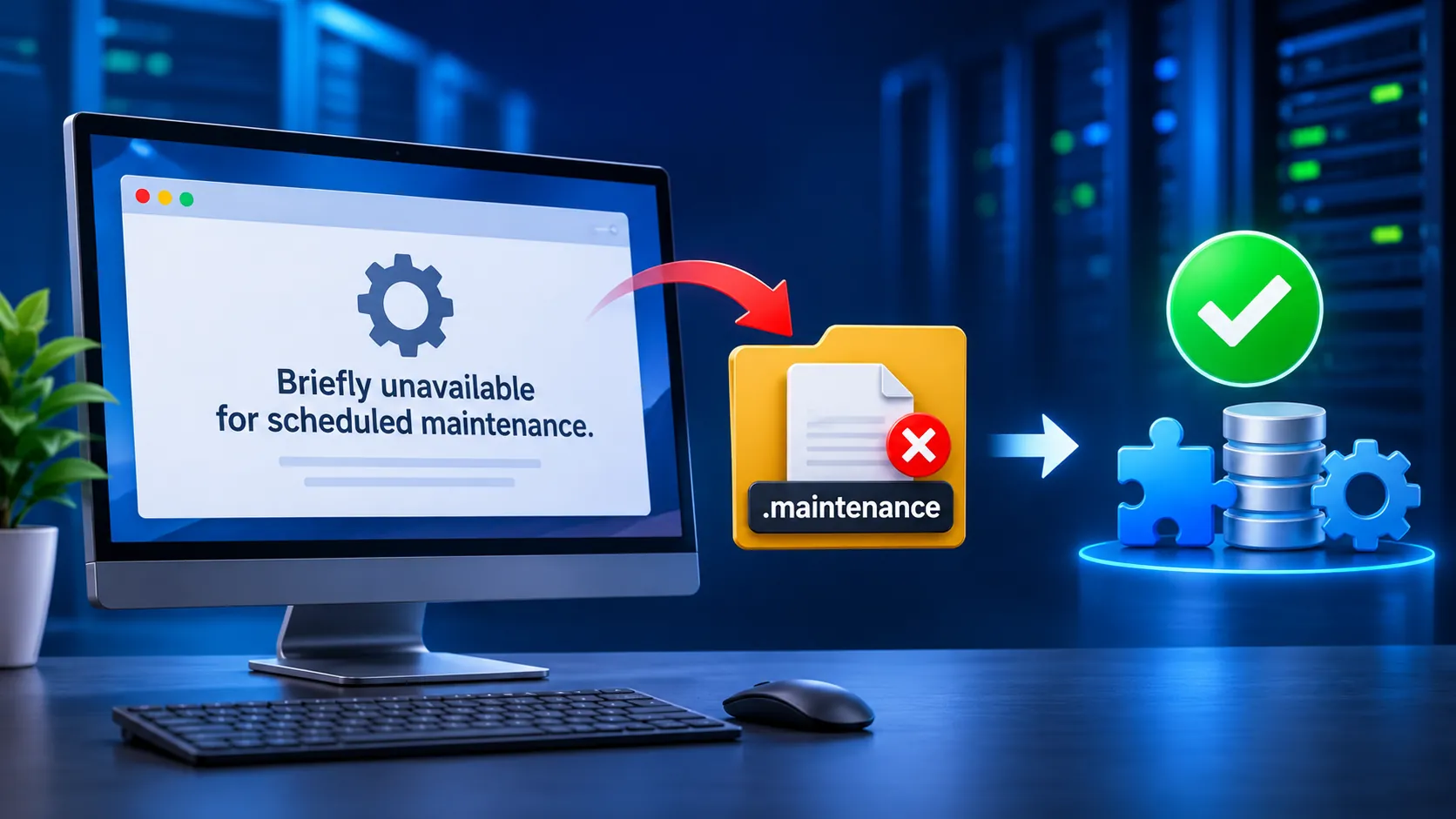
Your site shows one plain line of text: "Briefly unavailable for scheduled maintenance. Check back in a minute." You waited a minute, then five, and it's still there. The fix takes about as long as reading this paragraph: connect to the server, find a file called .maintenance in the WordPress root folder, and delete it, and the site comes back.
Most guides stop there. We don't, because deleting the file only removes the sign on the door. It doesn't tell you whether the update behind it actually finished. An update that died half-way can leave a plugin, a theme or WordPress core partly replaced, and that kind of damage often doesn't show on the home page. So this guide covers the quick fix first, then the checks that tell you whether the site is really fine, and what to do if it isn't.
What the message means: WordPress put up the.maintenance file and never removed it
Every time WordPress updates a plugin, a theme or itself, it writes a tiny file named .maintenance into the folder where wp-config.php lives. The file holds a single line of PHP: <?php $upgrading = 1763164800;?>. That number is a Unix timestamp, the second the update started.
While that file exists, WordPress answers every visitor with the "Briefly unavailable" page. It does this on purpose, because halfway through an update some files are new and some are old, and serving pages from that mix could throw errors or leak warnings. When the update finishes, WordPress deletes the file and the site returns.
The message appears when that last step never runs: the update stopped, and nothing came back to clean up after it.
Here's the detail most fix-it posts skip. The core code that decides whether to show the page has a built-in expiry. According to the WordPress developer reference for wp_is_maintenance_mode(), the site is only treated as under maintenance if the file was created less than 10 minutes ago. Per the source in wp-includes/load.php, once the timestamp is 10 minutes old, WordPress ignores the file and loads normally.
That changes how you read the problem:
- Under 10 minutes since the update started: the update may still be running. Give it a few minutes before touching anything.
- Over 10 minutes and visitors still see the message: WordPress itself has probably stopped showing it. What you're seeing is likely a cached copy of the 503 page from a page cache, your host's cache or a CDN. Delete the file anyway, then purge every cache layer.
- The message keeps coming back: something is starting new updates over and over, usually automatic updates retrying after a failure. That points at the cause, not the file.
Two other technical details are worth knowing. WordPress sends the page with HTTP status 503 (Service Unavailable) and a Retry-After: 600 header, which tells search engines to come back in 600 seconds rather than drop the page. A short stuck spell won't hurt your rankings. And if a file named maintenance.php exists in wp-content, WordPress shows that instead of the default line. So if you see a branded "back soon" page during an update, it's the same problem with a nicer face.
The fix: delete.maintenance (SFTP, file manager or SSH)
You need access to the server's files, so pick whichever route you already have, since all three do the same thing.
Option 1: SFTP
Open FileZilla, Cyberduck or WinSCP and connect with your hosting SFTP details. Go to the WordPress root, which is the folder holding wp-config.php, wp-admin, wp-content and wp-includes; on many hosts it's public_html. Files starting with a dot are hidden by default, so in FileZilla open the Server menu and tick "Force showing hidden files". Find .maintenance, right-click it and delete it.
Option 2: your host's file manager
In cPanel, open File Manager, click Settings in the top right, and turn on "Show Hidden Files (dotfiles)". Then browse to the WordPress root and delete .maintenance. Plesk and most custom hosting panels have a similar toggle.
Option 3: SSH
If you have shell access, this is the fastest route. Change into the WordPress folder and run:
cd ~/public_html
ls -la.maintenance
cat.maintenance
rm.maintenance
The cat line is worth the extra second. It prints the timestamp, so you know when the update started. Paste the number into any Unix time converter, or run date -d @1763164800 with your own number. If WP-CLI is installed, wp maintenance-mode status tells you whether WordPress thinks it's in maintenance, and wp maintenance-mode deactivate removes the file for you.
Reload the site in a private window. If you still get the message, purge your caching plugin, your host's server cache and your CDN (Cloudflare and similar), then try again.
Is it safe to delete? Yes, because the file holds nothing but that timestamp. Deleting it doesn't undo or redo any update; it only stops the maintenance page. Don't delete anything else in that folder while you're there.
Why the update got stuck
An update is a chain of steps run by one PHP request: download the zip, unpack it, move the old version aside, copy the new files in, run any upgrade routine, then delete .maintenance. If that request dies anywhere in the middle, the last step never runs. The usual reasons:
- The PHP request timed out. Shared hosts often cap scripts at 30 or 60 seconds. A large plugin on a slow disk can run past it.
- PHP ran out of memory while unpacking a big archive.
- You closed the tab or lost connection during a manual update. On most setups the request keeps going without you, but not on every host.
- You updated many plugins at once. A bulk update runs them one after another inside a single maintenance window. One slow plugin can push the whole batch over a time limit.
- Two updates collided, for example an automatic background update and a manual click at the same moment.
- Disk space or file permissions failed. A full disk or a folder WordPress can't write to stops the copy step cold.
Automatic updates add their own twist. WordPress runs background updates through WP-Cron, and WP-Cron only fires when someone visits the site, so on a quiet site the update may start whenever the next visitor (or a search engine bot) happens to load a page. That request is subject to the same time and memory limits as any other, and nobody is watching it. If it dies, the first person to notice is usually a customer, hours later, by which point the 10-minute expiry has passed and the page they see is coming from a cache. If you find a stuck .maintenance file and don't remember clicking Update, check your inbox: WordPress normally emails the site admin after a background update, and a missing or failed-update email for that time is a strong clue.
Multisite networks behave the same way, with one file for the whole network. A single stuck update takes every site in the network offline at once, which is a good reason to run network updates from the command line rather than the browser.
The core files show why this leaves a mess. In class-wp-upgrader.php, the same function both writes and deletes .maintenance, called once before and once after the work. Nothing removes the file if PHP is killed in between. For WordPress core updates, update-core.php carries a comment that says it plainly: the file is deleted only after "potential site-breaking changes" are done.
After the fix: check for a half-finished update
This is the part the ranking guides leave out, and it's the part that matters most. The site loading again does not mean the update worked. If the request died while copying files, you can end up with a plugin folder that's half old version and half new. That kind of break often hides: the home page loads, but a checkout page, a form or an admin screen throws an error.
Spend 10 minutes on these checks, in this order, before you call the job done.
1. Read the timestamp before you deleted it
If you used cat, you know when the update began. Match that time against what was updating: auto-update emails from WordPress, your host's logs, or simply what you clicked. That tells you which plugin or theme to look at first.
2. Look at Dashboard > Updates and the Plugins screen
A plugin that still shows "update available" after the fix never got its new version. One that shows the new version number may still be incomplete. Also look for plugins that WordPress quietly deactivated, and for a notice at the top of the screen asking to update the database. Some plugins (and core) need that step after new files land.
3. Check versions from the command line
With WP-CLI, three commands give you a clear picture:
wp core version
wp core verify-checksums
wp plugin verify-checksums --all
The checksum commands compare your files against the official copies on WordPress.org. Any file listed as changed or missing is a sign the update stopped part-way. Plugins from outside the WordPress.org directory can't be checked this way, so test those by hand.
4. Look in wp-content for leftovers
Since WordPress 6.3, a plugin or theme update first moves the old version into wp-content/upgrade-temp-backup/, so it can roll back if the update fails. Unpacked downloads sit in wp-content/upgrade/. A folder left behind in either place is a clue that an update didn't finish. Don't delete the backup copy until the site checks out. It may be the cleanest old version you have.
5. Turn on the debug log and click through the site
Add these lines to wp-config.php above the "stop editing" comment:
define( 'WP_DEBUG', true );
define( 'WP_DEBUG_LOG', true );
define( 'WP_DEBUG_DISPLAY', false );
Then load the pages that matter most: the home page, a post, the contact form, the cart and checkout if you sell, and the admin screens for the plugin that was updating. Errors land in wp-content/debug.log. A "Fatal error" or "Class not found" mentioning one plugin's folder is your culprit. Turn debugging off again when you're done.
If all five checks are clean, you're finished. Purge caches one more time and move on.
If the site is broken now: roll back cleanly
Sometimes deleting the file just swaps one problem for another: a white screen, a "critical error" message, or a database connection error. Our guide to fixing the WordPress white screen of death covers the general tactics. For a stuck update, the cause is usually narrow, so start small.
One plugin is broken. Rename its folder in wp-content/plugins (for example, add -off to the name). WordPress deactivates it, and the rest of the site loads. Then reinstall that plugin cleanly. With WP-CLI: wp plugin install plugin-name --force. To go back to the version you had, add --version= and the old number. If WordPress left a copy in upgrade-temp-backup, that's the old version, ready to move back.
WordPress core is broken. Run wp core download --skip-content --force to lay a fresh copy of core over the top. It replaces wp-admin and wp-includes and leaves your content, uploads and wp-config.php alone. Without WP-CLI, the manual route in the official guide to updating WordPress does the same job by hand.
The database was changed. This is the hard case. If an upgrade routine started rewriting tables and then died, reinstalling files won't undo it. The new code may expect a table layout that is only half there. This is where a backup from just before the update earns its keep.
Restoring that backup is often cleaner than patching things by hand. If you only need the database put back, restore the database and leave the files. If the files are a mess too, restore both. BackupYourSite's restore flow offers "files, database or both" as a choice for exactly this reason: a bad plugin update often only needs the database rolled back, and that's much faster than resending every file. Archives are checked again before anything on your site is touched, so a damaged backup is refused and your site is left as it was. You can see each step on our how BackupYourSite works page.
One more thing matters here. A stuck update is exactly the moment when a backup that lives inside WordPress can't help much, because WordPress is the thing that's broken. The BackupYourSite SSH service connects to the server from outside, so it can still restore when the admin area won't load. Our free WordPress plugin runs inside WordPress, so if the site can't start, you download the archive and restore it through your host. Know which kind you have before you need it.
Need only one post or page back, not the whole site? See restoring one page without rolling back the whole site.
Stop it happening again
You can't make every update succeed, but you can make a failed one cheap and boring to recover from.
Take a backup right before updates, not just at night. A nightly backup taken 20 hours before an update means 20 hours of orders, comments or form entries are lost if you have to roll back. Schedule the backup shortly before the time you usually update, or trigger one by hand first. Our piece on how often you should back up your WordPress site helps you pick a rhythm that fits how often content changes.
Update one plugin at a time on busy sites. Bulk updates are convenient, but they put every plugin in one long request. Doing them one by one keeps each request short, and if one fails, you know which.
Give PHP room. Ask your host what the PHP time limit and memory limit are. If either is tight, raise them, or run updates with WP-CLI over SSH. A command-line run isn't held to the same web request time limit, which removes the most common cause of this whole error.
Don't close the tab. Wait for the "All updates have been completed" line before you leave the Updates screen.
Keep an eye on disk space. A full disk breaks updates and backups together. Old backup zips stored on the same server are a common reason disks fill up.
Know your rollback safety net. WordPress 6.3 added rollback for failed manual plugin and theme updates, and later releases extended it to automatic plugin updates. That helps, but it only covers a single plugin or theme, and only when WordPress notices the failure. It's not a backup of your site or your database.
This guide is based on the WordPress core files that create, check and delete .maintenance (load.php, class-wp-upgrader.php and update-core.php) and the WordPress developer reference, not on other tutorials. That's where the 10-minute expiry and the 503 status come from, and you can check both yourself. If you'd rather not deal with a broken update by hand again, BackupYourSite takes a verified backup every day on your schedule and restores files, the database or both in one click. Start the free trial.
Frequently Asked Questions
How do I fix 'Briefly unavailable for scheduled maintenance'?
Connect to your server with SFTP, your host's file manager or SSH, open the WordPress root folder (the one with wp-config.php), show hidden files, and delete the file named.maintenance. Then purge any caches. After that, check that the update which got stuck actually finished.
Where is the.maintenance file?
It's in the WordPress root folder, next to wp-config.php, wp-admin and wp-content. On many hosts that's public_html. The name starts with a dot, so it's hidden unless you turn on "show hidden files" in your SFTP program or file manager.
Is it safe to delete the.maintenance file?
Yes. It contains only one line of PHP with the time the update started. Deleting it stops the maintenance page and nothing else. It doesn't undo or repeat the update, so check afterwards that the update completed.
Why is WordPress stuck in maintenance mode?
The update that created the.maintenance file stopped before its last step, which deletes the file. Common causes are a PHP time limit, low memory, a bulk update of many plugins, two updates running at once, or a full disk. If the message lasts more than 10 minutes, WordPress itself is usually no longer showing it, so a cache is serving an old copy.
Can a stuck update break my site?
Yes. If the update stopped while copying files or changing the database, a plugin, theme or core can be left partly updated. Check versions, run WP-CLI checksum checks, and read the debug log. If something is broken, reinstall the affected plugin or core, or restore the backup taken before the update.